.png)

All Properties
- Print
- DarkLight
- PDF
All Properties
- Print
- DarkLight
- PDF
Article summary
Did you find this summary helpful?
Thank you for your feedback!
The Parcel page feature in the Sourcing Workspace allows users to identify and research properties that are not currently listed for sale (also known as off-market properties). These properties can be analyzed using map-based tools, filters, and parcel data to uncover potential investment opportunities.
The Parcel page represents a defined piece of land with legal boundaries, identified by a unique number. It includes details such as lot size, building size, zoning, land use, ownership, tax history and other assessment data. It serves as the foundational unit for analyzing land value and developmental potential.
Switching to All Properties View
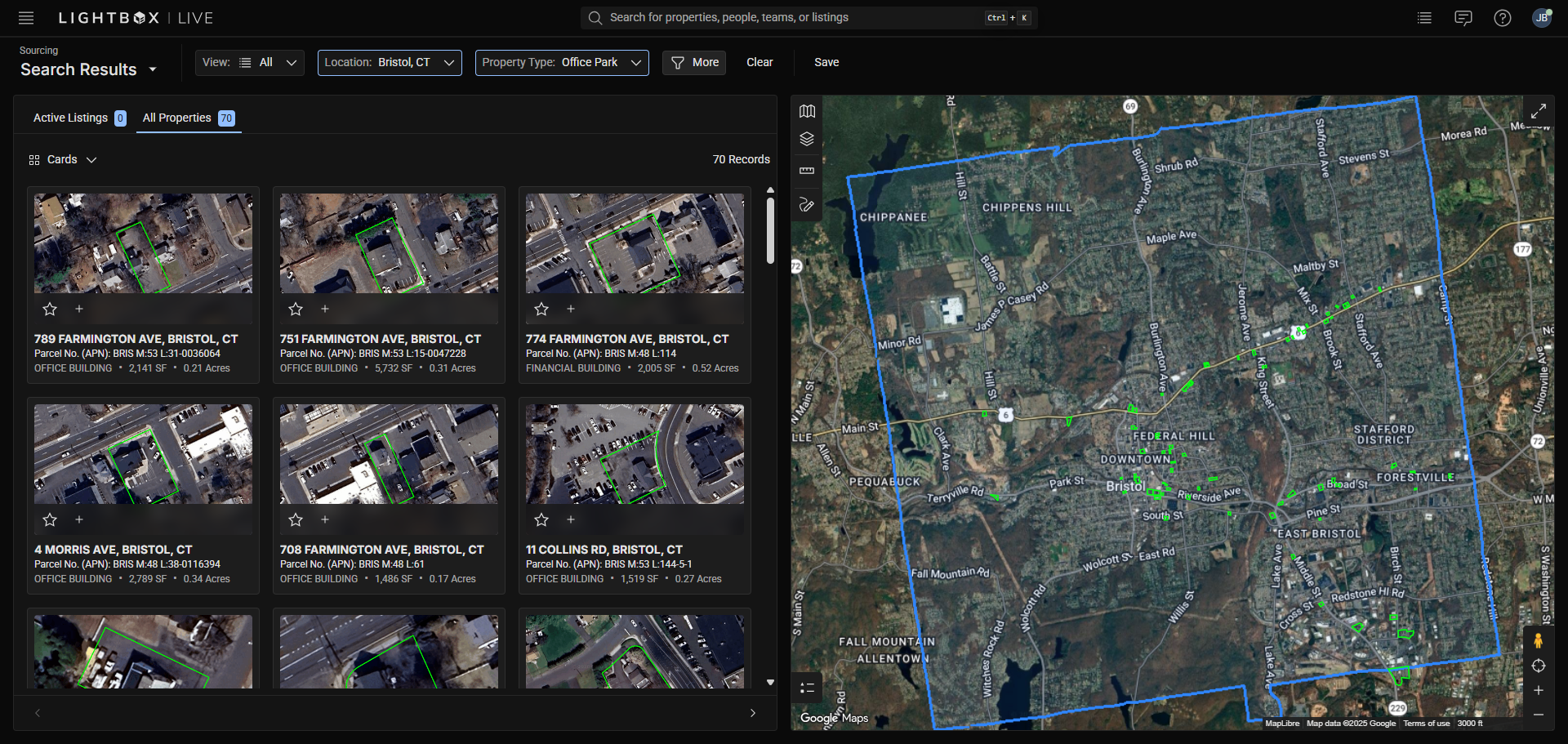
There are two ways to access off-market property data. The first method is by selecting All Properties from the tab view under Search Results after a search has been performed. The second method is by directly selecting parcel boundaries from the map to get a detail panel.
Method One:
Conduct a search using the filter options and insert a location.
Select the All Properties tab when results appear.
Select a result from the card or table view to see the Details Panel for tabs like Property Details, Owner, and Notes.
Method Two:
Select the Sourcing Workspace icon from the Workspace Tray in the top left.
Zoom in on the map view to your area of interest.
Click on a parcel boundary (make sure the Parcels layer is enabled).
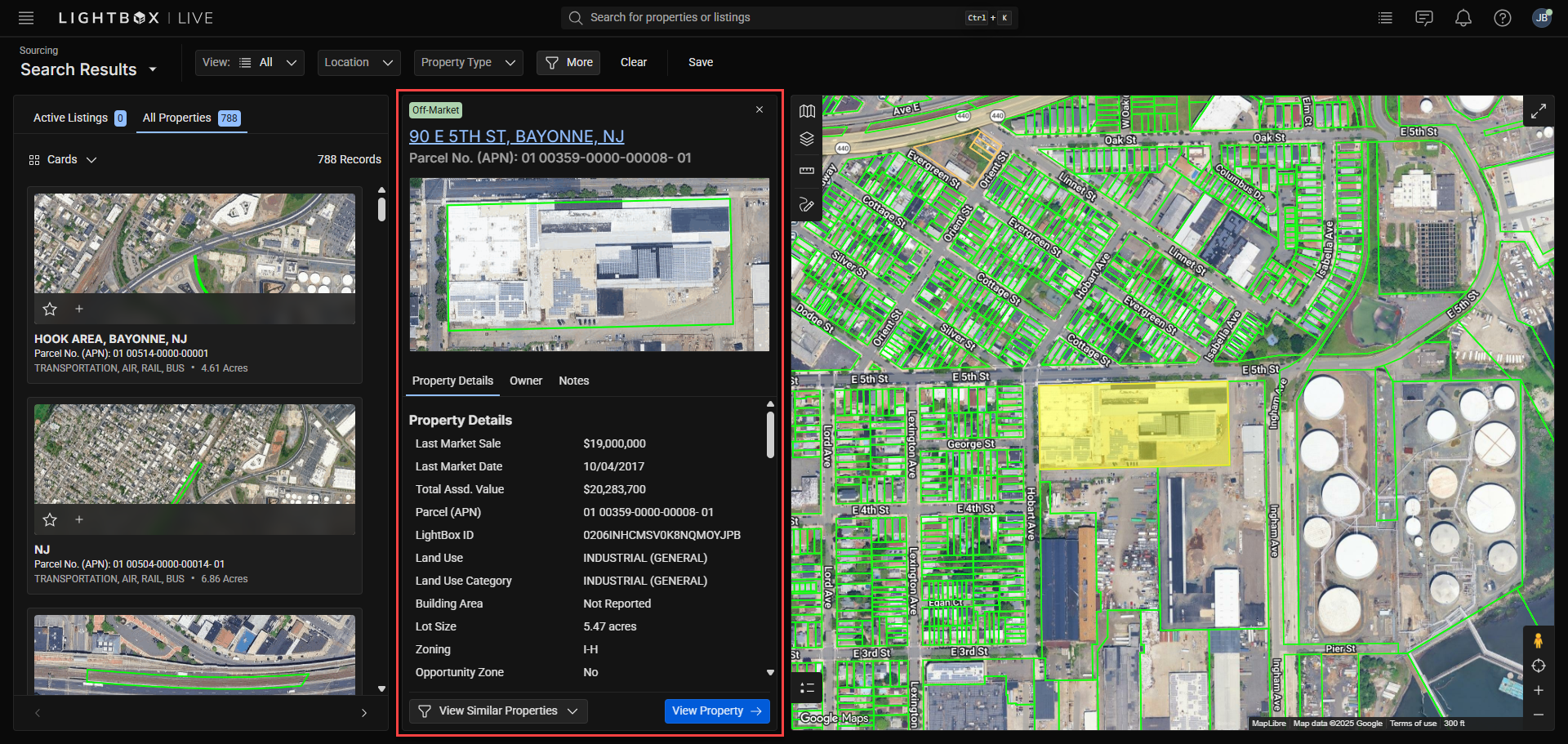
A detail panel will appear showing the Property Details, Owner, and Notes tabs .
When viewing all property results from a search, ensure that your map scale is zoomed in to a close range; the required zoom level depends on the density of the data in the area.
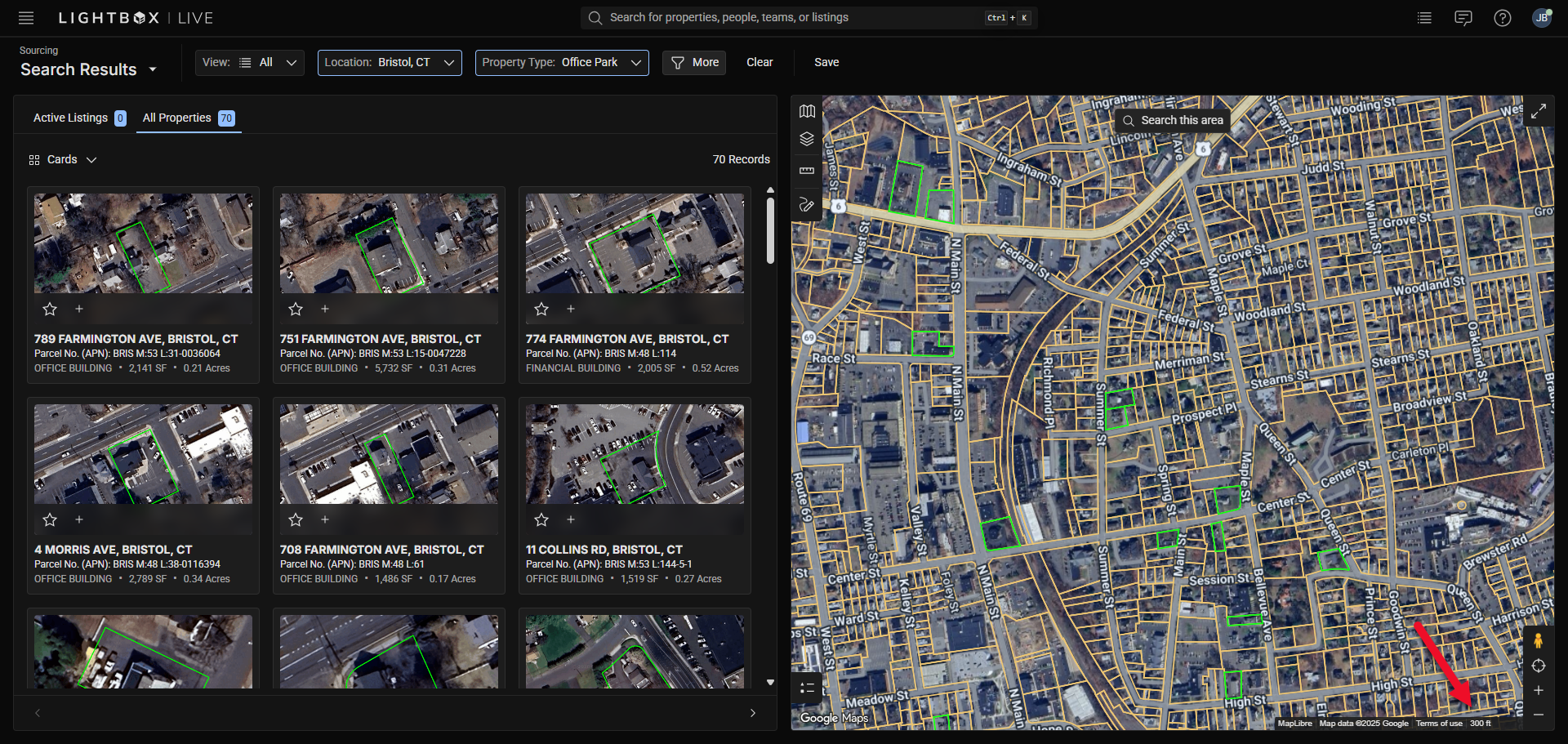
Note: The “All Property” search relies on parcel-level data. If you are zoomed out too far, parcels will not appear until the map is within the required viewing scale.
Tip: Use a combination of map panning and the Search this area button to refresh results as you navigate across new regions.
Interpreting All Properties Results
Once the All Properties tab is active and the map is positioned appropriately, eligible parcels will display as highlighted shapes on the map.
Each qualifying parcel is outlined with a green boundary.
Clicking within a parcel opens the Property Detail popover panel.
Note: Parcel boundaries and property data are sourced from county assessor databases and update as new data becomes available.
The off-market property data within LightBox Live is derived from transaction records, public assessor records, and tax records. While data is updated regularly, variations in timing or formatting may occur between counties or municipalities.
Street numbers: LightBox Live uses county assessor data for building address numbers, which may differ slightly from Google Maps™ automated labeling.
Parcel boundaries: Boundaries reflect assessor data and may differ visually from imagery at certain zoom levels. Note: These boundaries are received once or twice annually, depending on the source.
Viewing Similar Properties and Full Property Details
Click a parcel on the map to open it in the popover panel.
Click View Similar Properties to expose a menu containing two commands.
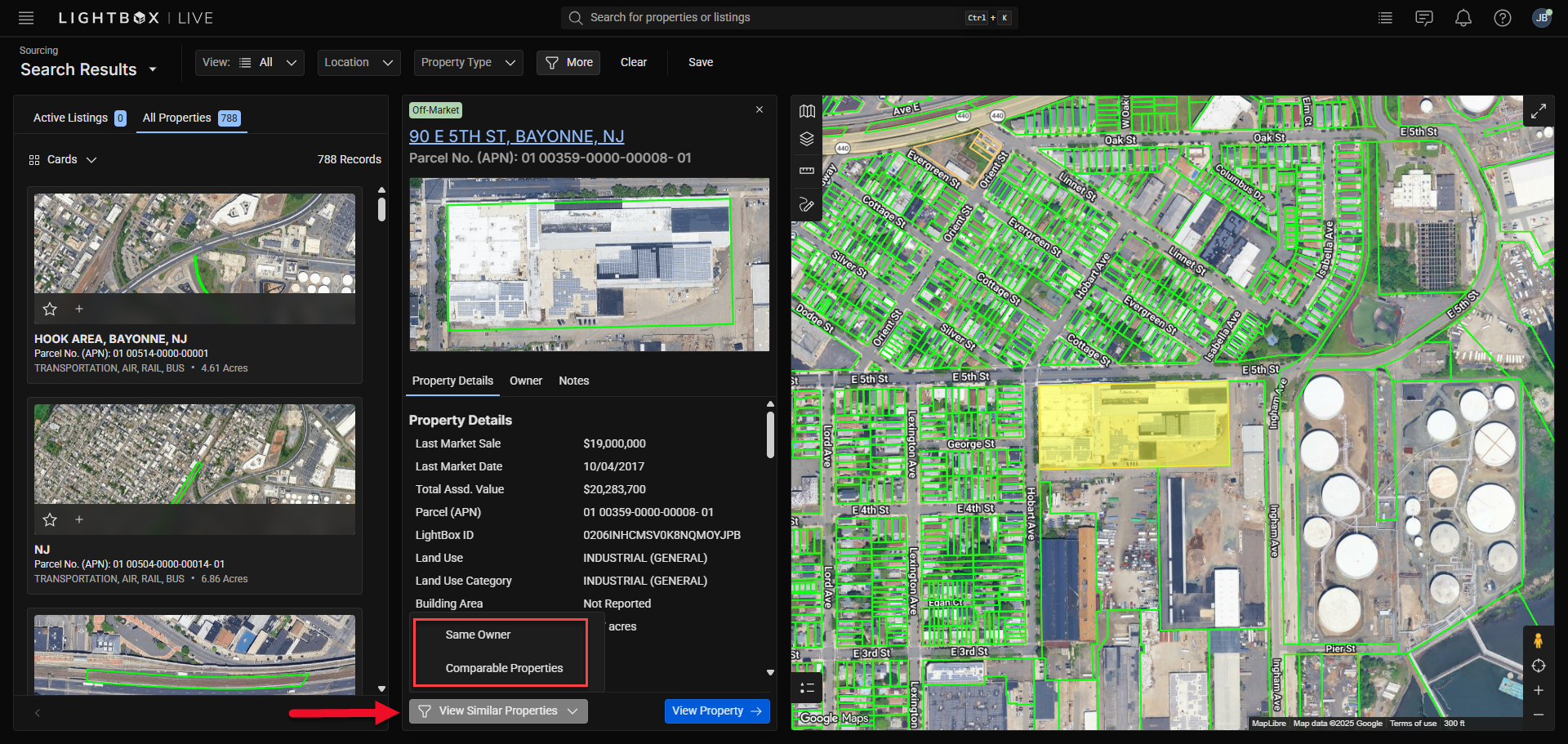
Click Comparable Properties to display properties with similar characteristics.
Click Same Owner to display properties with the same owner.
To view more information about the currently selected property, click View Property to open the Property Details entity.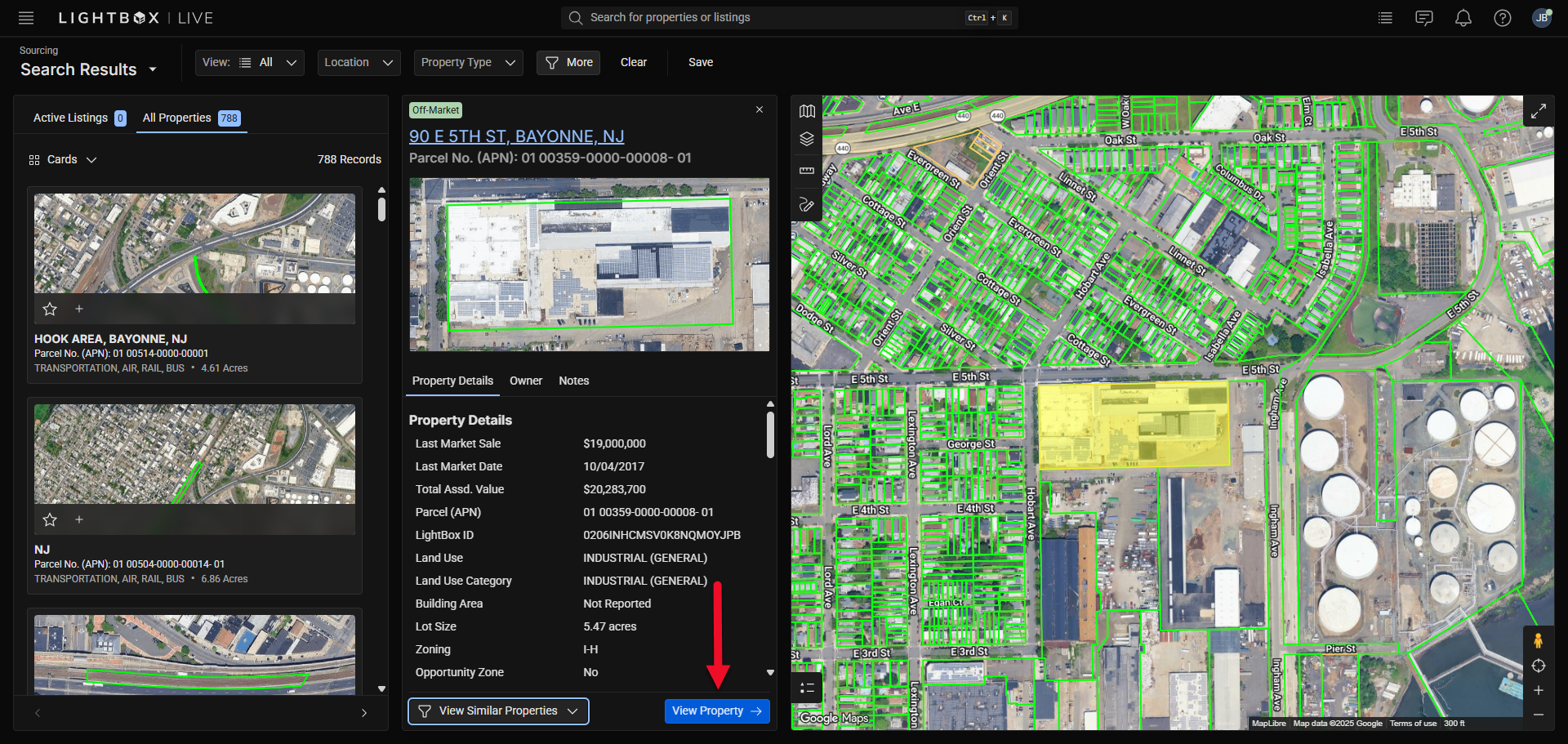
The Property Detail page displays in-depth ownership, tax, and transaction data.
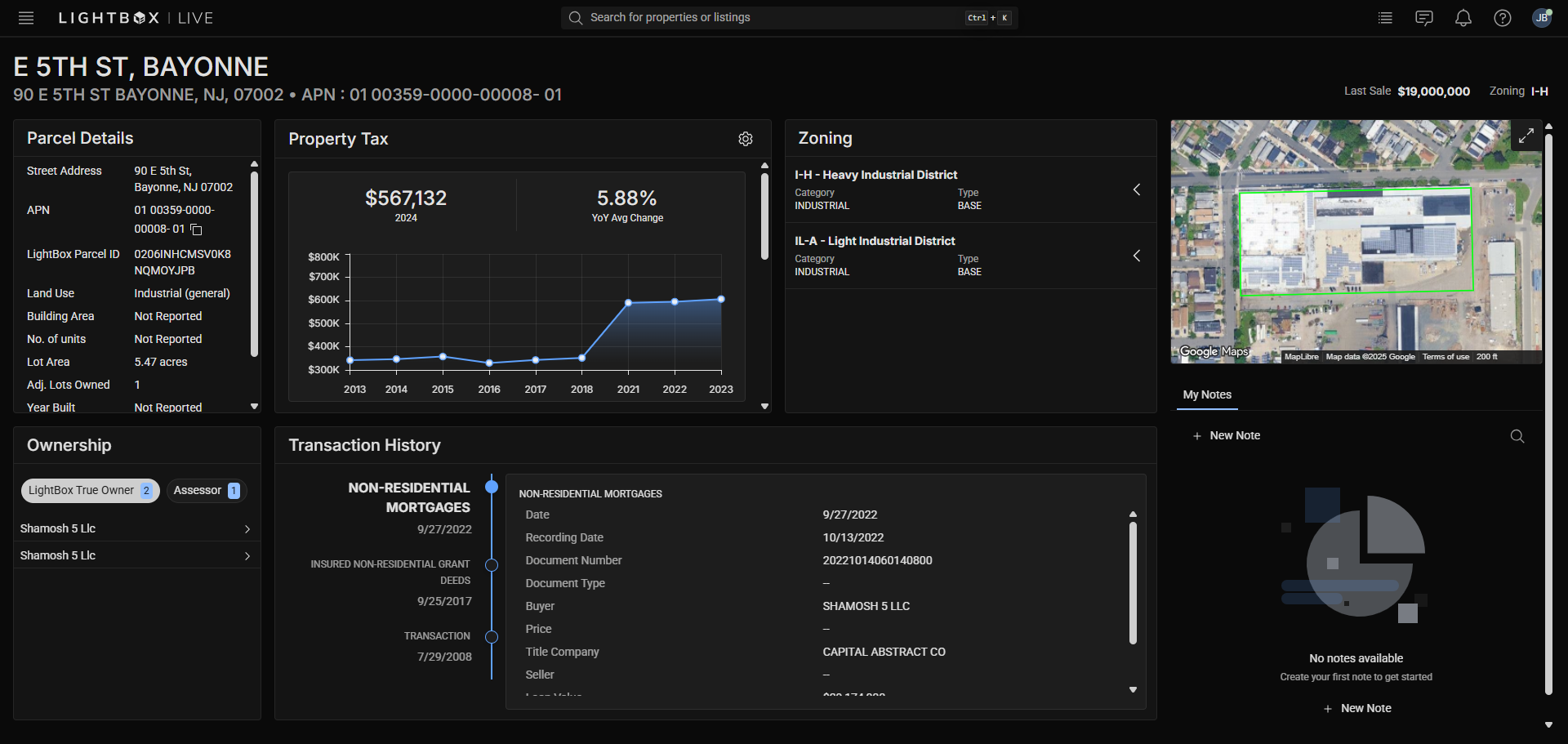
The information in the Parcel Details, Property Tax Details, Transaction History Details, and Assessor Ownership widgets is sourced from county assessor data.
Zoning Data: The LightBox in-house fulfillment team cross-references zoning information with different jurisdictions (cities and counties).
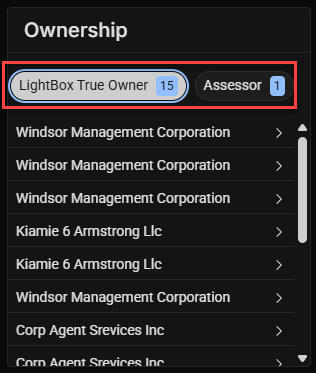
True Owner: LightBox works with a third-party vendor to provide the most current information on possible related contacts—a business or an individual—that can be tied to a subject property. Toggle back-and-forth between True Owner data and Assessor data by clicking on the respective buttons in the Ownership widget.
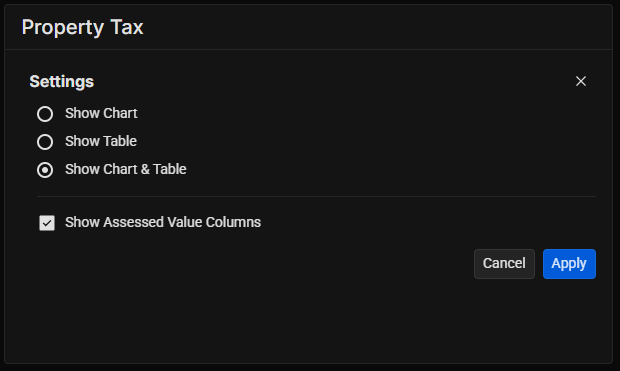
The data in the Property Tax widget can be displayed as a chart, table, or both. Click the gear icon in the upper right corner of the widget to expose the controls.
.png)
Make the desired changes, then click Apply to save them.
Add notes about the property by clicking the + New Note button in the bottom right corner of the screen.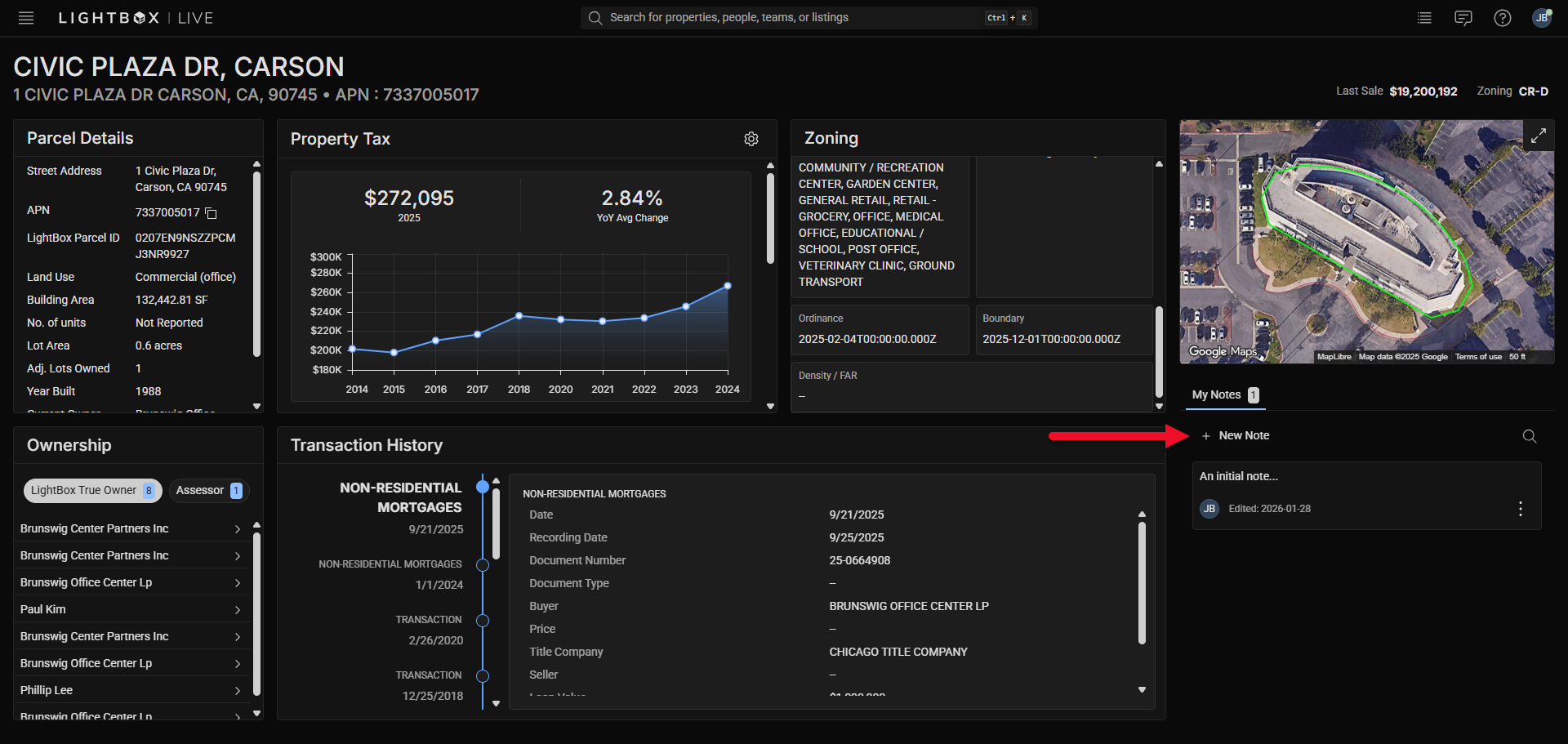
Click the magnifying glass and enter a search phrase to search through all the notes associated with the property. Note: The search is case sensitive.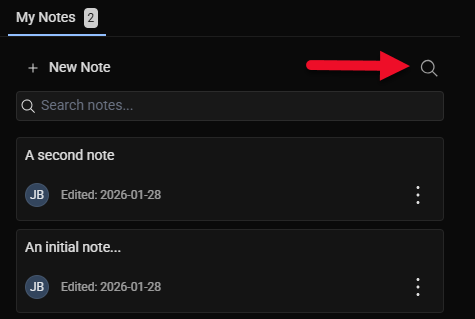
Was this article helpful?
.png)