.png)

Notifications
- Print
- DarkLight
- PDF
Notifications
- Print
- DarkLight
- PDF
Article summary
Did you find this summary helpful?
Thank you for your feedback!
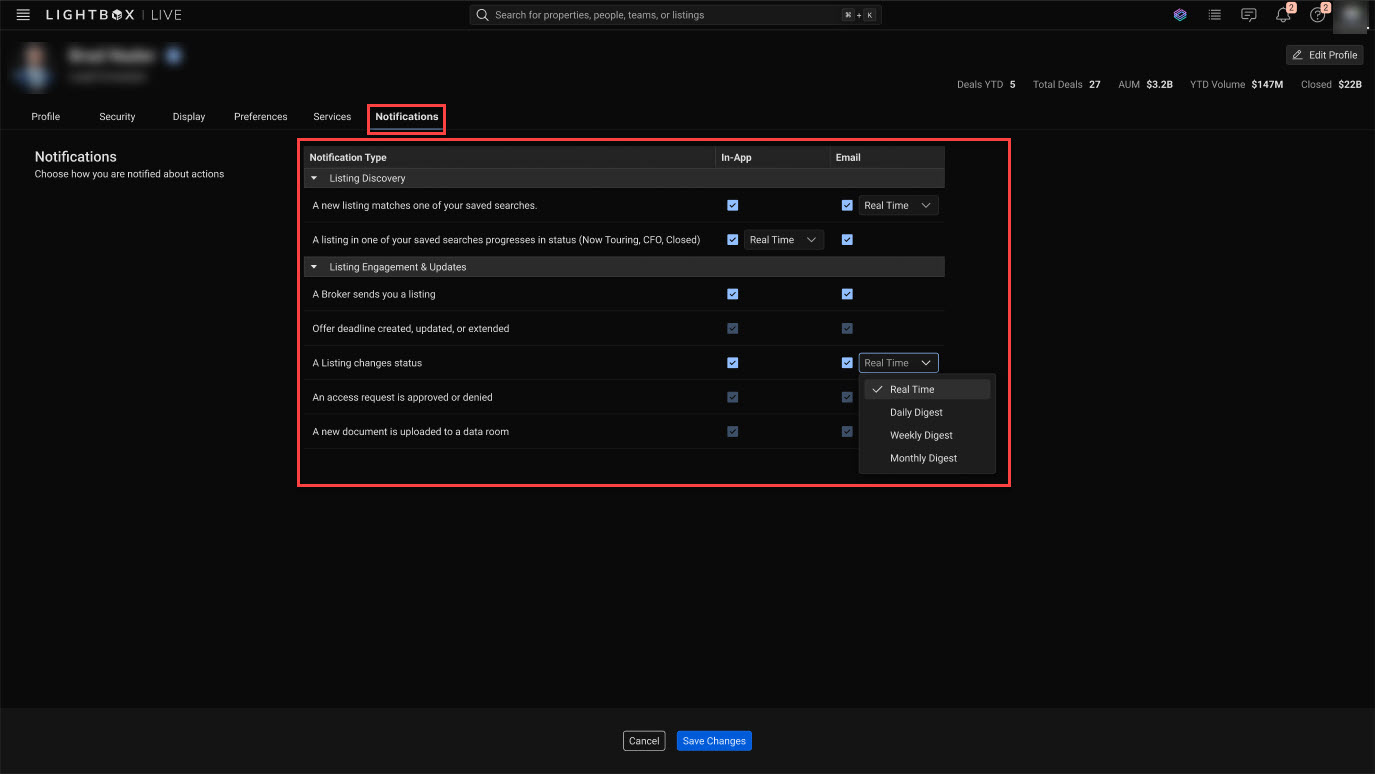
The Notifications management tool allows you to control how you are alerted about platform activity. Notifications are organized by Notification Type and can be delivered via:
In-App (platform notifications)
Email (external email alerts)
Some email notifications support a frequency setting (e.g., Real Time via dropdown).
Notifications are grouped into two primary categories:
Listing Discovery
A new listing matches one of your saved searches
A listing in one of your saved searches progresses in status (Now Touring, CFO, Closed)
Listing Engagement & Updates
A Broker sends you a listing
Offer deadline created, updated, or extended
A Listing changes status
An access request is approved or denied
A new document is uploaded to a data room
Managing Notifications
Step 1: Navigate to Notifications
To access the Notifications management tool, click your profile icon in the upper right corner of any page.

Click the Notifications tab, which exposes a table of notification configuration options.
Step 2: Enable or Disable Notifications
For each notification type:
Check the In-App box to receive platform alerts.
Check the Email box to receive email alerts.
Uncheck either box to disable that delivery method.
Users can independently control In-App and Email for each notification type.
Step 3: Set Frequency (If Available)
For applicable notifications:
Use the dropdown to select delivery timing (e.g., Real Time).
.jpg)
Frequency settings are available for:
A new listing matches one of your saved searches (email)
A listing one of your saved searches progresses in status (in-app)
A listing changes status (email)
Step 4: Save or Discard Changes
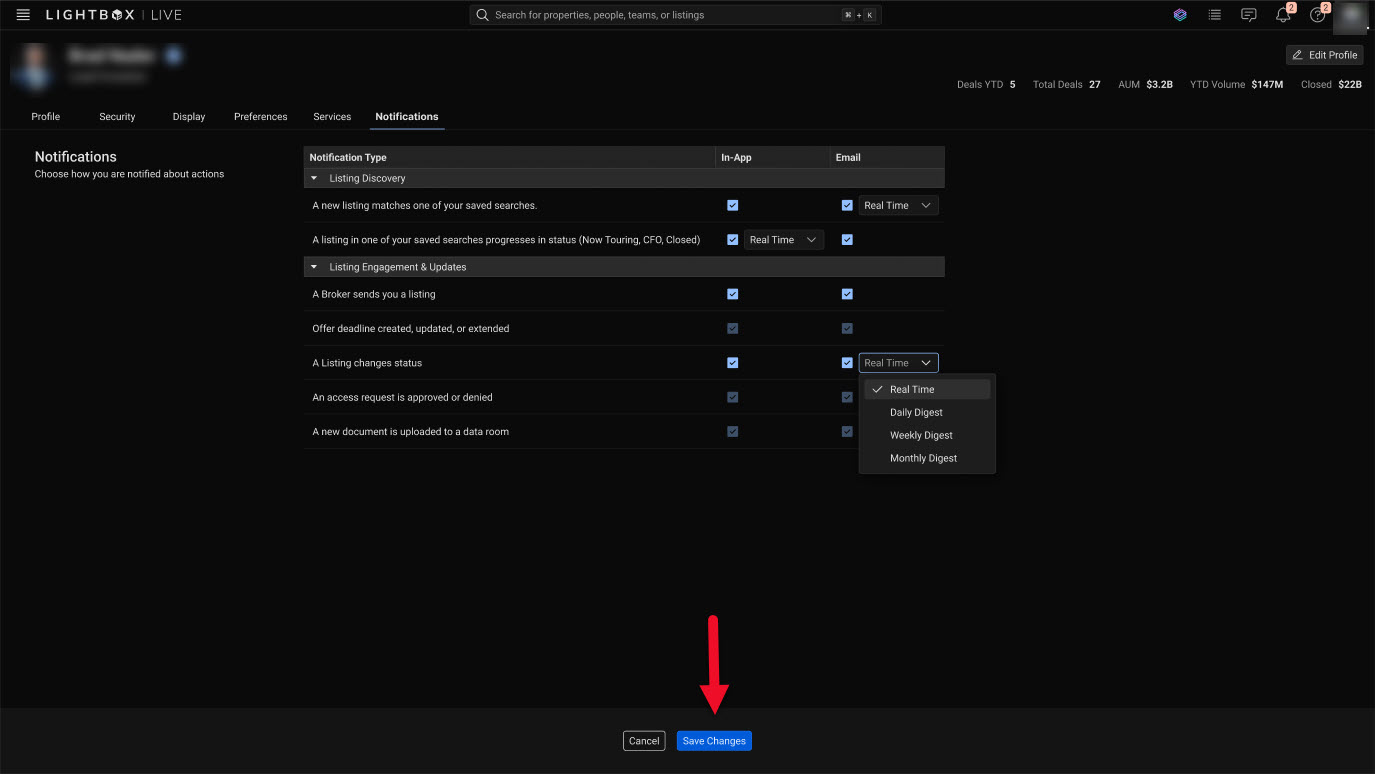
Click Save Changes to apply updates.
Click Cancel to discard modifications and revert to the previous settings.
Was this article helpful?
.png)