.png)

Map and Tools
- Print
- DarkLight
- PDF
Map and Tools
- Print
- DarkLight
- PDF
Article summary
Did you find this summary helpful?
Thank you for your feedback!
Navigating the Map and Utilizing Map Tools
The Map and Spatial Tools within the Sourcing Workspace allow users to visualize properties geographically, perform spatial measurements, and define custom search areas. The map is fully interactive and dynamically updates to reflect filters, searches, and user-drawn boundaries.
Map Toolbar Overview
The Map Toolbar is a vertical icon bar located along the left edge of the Sourcing Workspace map. Each icon provides access to a different spatial or visualization tool.
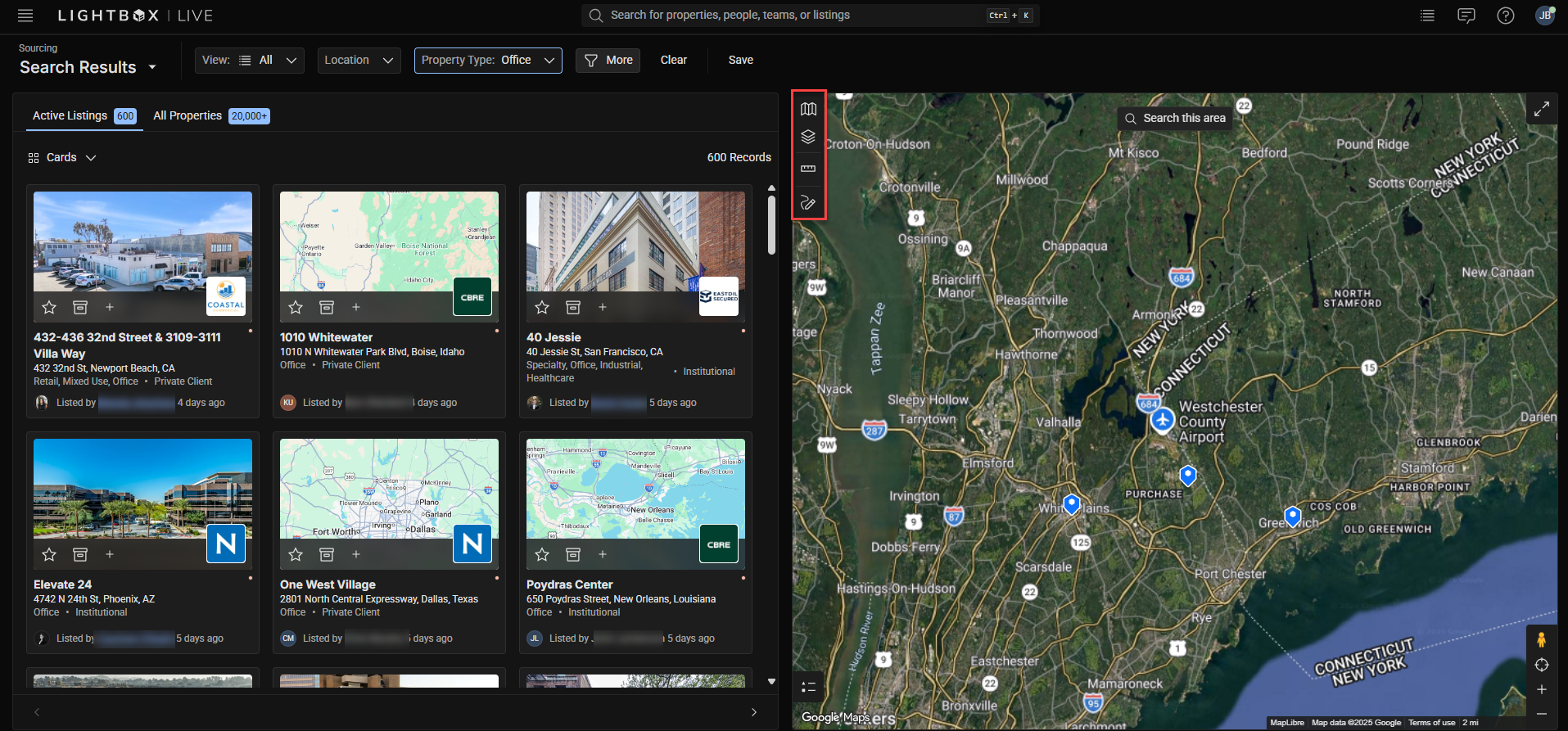
Map Type: Change between different map base layers, such as street view or satellite imagery.
Layers: Display or hide property and parcel overlays.
Measure: Calculate distances, perimeters, and areas.
Draw: Create circular or polygonal boundaries to define search areas.
Note: All map tools work in combination with filters and search functions. Adjusting one will update the others in real time.
Map Type Options
LightBox Live provides multiple map base styles to support different visualization preferences and workflows.
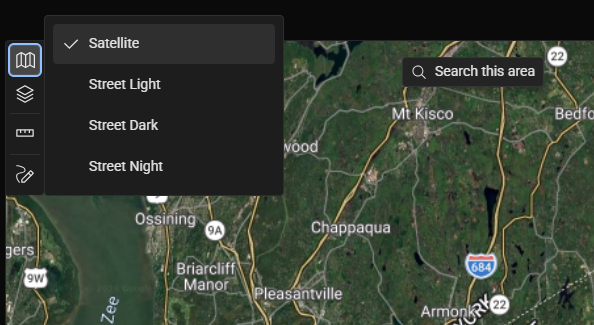
Click the folded map icon on the toolbar.
Select from available base layers:
Satellite – Displays high-resolution aerial imagery.
Street Light – Shows standard light-themed street map.
Street Dark – Provides a dark-mode street map for improved contrast.
Street Night – Displays a low-light optimized night map.
Note: Some combinations of layer colors and map type options are less clear than others; choose what works best based upon the type of layer you need to view.
Map Layers
Map Layers add valuable context to your spatial analysis by displaying visual overlays such as property parcels, zoning areas, and opportunity zones.
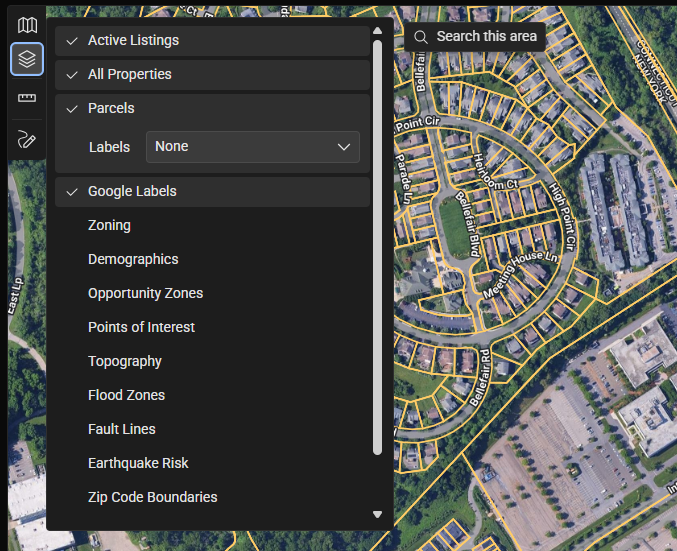
Click the Stacked Paper icon on the toolbar.
Enable or disable layers by toggling the checkboxes next to each option.
Common layers include:
Parcels: Displays property boundaries.
Zoning: Shows zoning classifications to identify land-use constraints or opportunities.
Opportunity Zones: Highlights federally designated investment incentive areas.
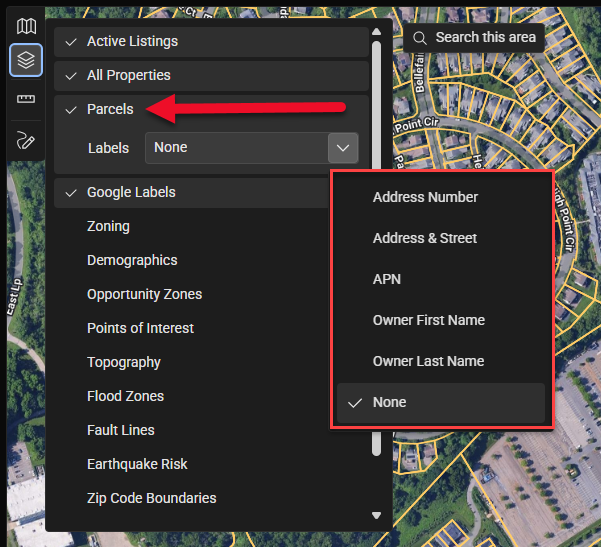
Labels: Adds address or lot number labels directly to parcel boundaries.
Some layers include a sub-menu that allows for secondary selections, which are the label options for the attributes in that layer’s dataset. For example, when the Parcels layer is selected, a sub-menu allows you to select specific parcel-identifying labels.
Some layers include a legend. Click the list button in the lower left corner of the map to open the legend.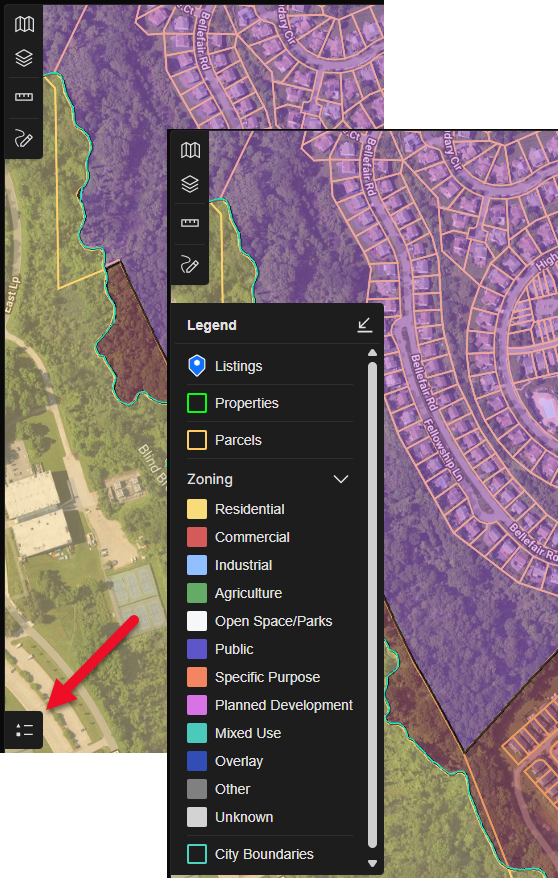
To learn more about Layers, refer to the Map Layers page.
Note: Certain layers may only appear when the map is zoomed to the recommended scale. If a selected layer does not display, zoom in closer until it becomes visible.
Measurement Tools
The Measurement Tools allow users to measure distances, areas, and perimeters directly on the map. These tools are helpful for evaluating property dimensions or proximity to nearby features.
.png)
To access measurement options:
Click the Ruler (Measure) icon on the toolbar.
Choose one of the available shapes from the submenu:
Polyline – Measure straight-line distances. Click once to begin the measure, click again when you wish to add a vertex, and double-click to end the measurement.
Polygon – Measure areas with multiple sides. Click once to begin the measurement and click again when you wish to add a vertex. Complete the measurement by enclosing the space.
Circle – Measure circular areas or radii. Click to set the center of the circle, then drag your mouse cursor outward to expand the circle, and click to complete the measurement.
Editing and Deleting Measurements
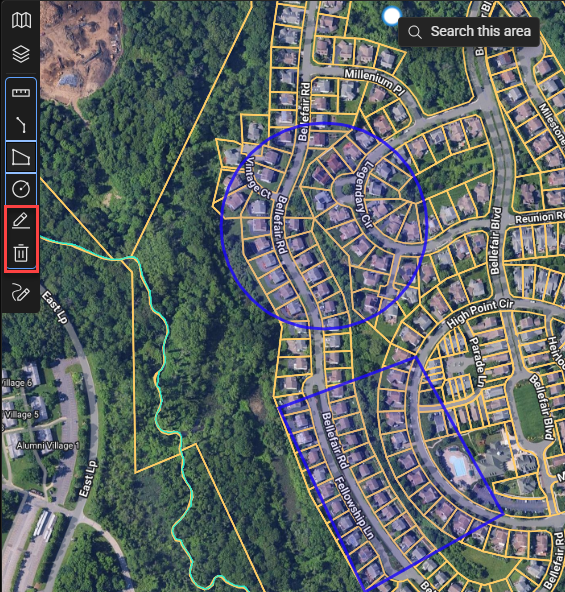
Click the Edit icon to adjust vertices or reposition a measurement.
Click the Trash Can icon to delete all measured shapes at once.
Tip: After completing a measurement, click the same shape icon again to exit drawing mode. You can then hover over your drawing to view details without editing it.
Drawing Tools
The Drawing Tools allow you to define a custom search boundary directly on the map. This helps narrow searches to specific neighborhoods, corridors, or site clusters.
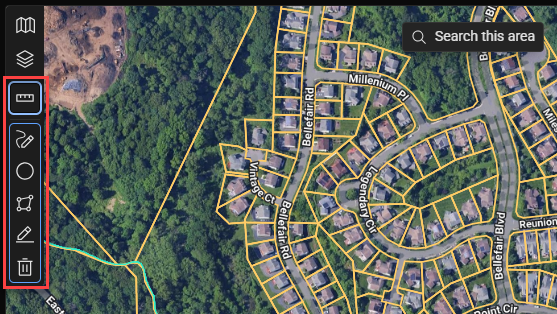
Click the Pencil (Draw) icon on the toolbar.
Select a shape type:
Circle – Define a search radius around a central point.
Polygon – Draw irregular boundaries to outline specific areas of interest.
After drawing the shape, click inside it to activate the Search in Drawing option. The workspace will update to display only listings or parcels that fall within your custom area.
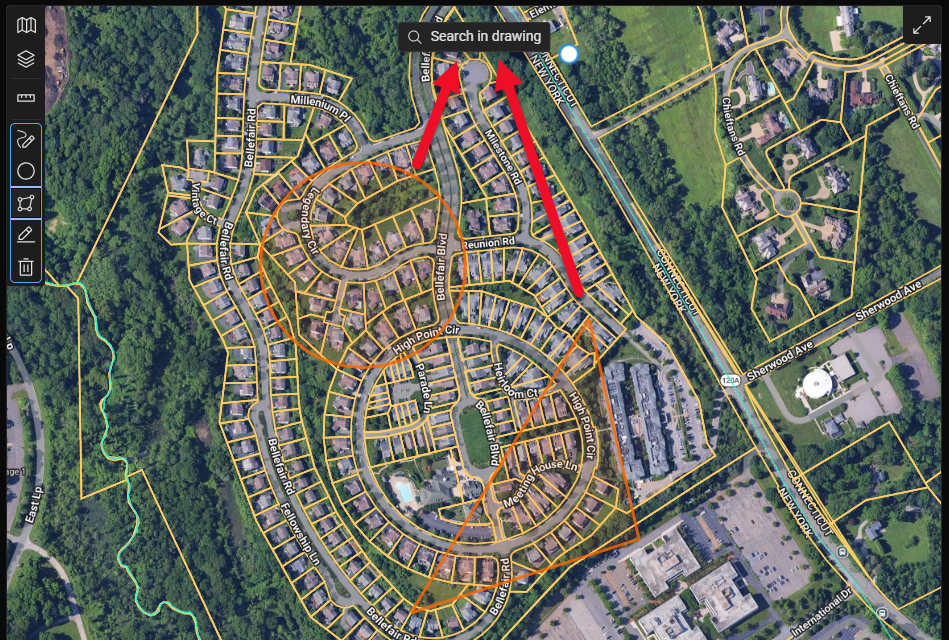
Tip: When viewing all property results, ensure that your map scale is zoomed in to a close range; the required zoom level depends on the density of the data in the area. You can find the zoom in the lower right corner of the map.
Note: The Draw Tool in the Sourcing workspace is designed to work as marked search parameters and not as markup annotations that can be saved and returned to in subsequent sessions.
Editing or Deleting
Click the Edit button in the Draw submenu to move or reshape a boundary.
Click the Trash Can icon, then click the drawing to remove it.
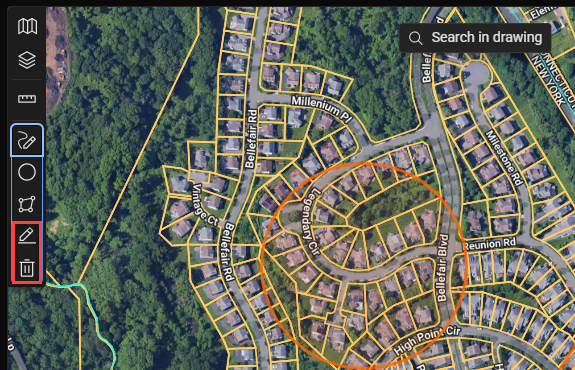
Note: Using "search in drawing" won't work while in editing mode. Click the draw or edit icon to exit editing mode.
Tip: You can create multiple drawings on the map.
Recenter Map
The Recenter Map tool returns your view to the primary search or results area if you’ve navigated away.
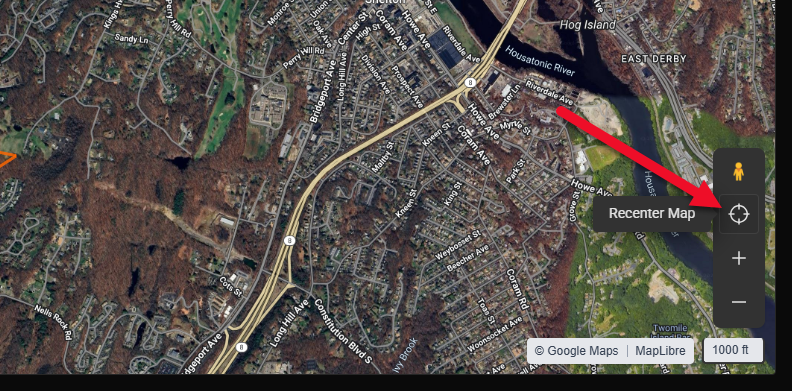
Click the Target Icon labeled Recenter Map in the bottom-right corner of the map.
The map will automatically reposition to center on the current search results.
Note: Recenter Map is especially useful after drawing or measuring when the viewport shifts away from your active results.
Was this article helpful?
.png)