.png)

Listings and On-Market
- Print
- DarkLight
- PDF
Listings and On-Market
- Print
- DarkLight
- PDF
Article summary
Did you find this summary helpful?
Thank you for your feedback!
Exploring Listings and Property Details
The Sourcing Workspace allows users to explore both active and off-market properties in detail. Listings include essential property data, broker information, and interactive tools for saving, archiving, or tracking opportunities.
See the All Properties documentation for information about working with off-market properties.
Sourcing Panel
Active listings represent properties currently for sale. These listings appear within the Active Listings tab of the Sourcing Panel on the left side of the workspace.
Each listing appears as a card (in Card View) or as a row (in Table View). Each contains key property information, including the property name, address, and broker contact details.
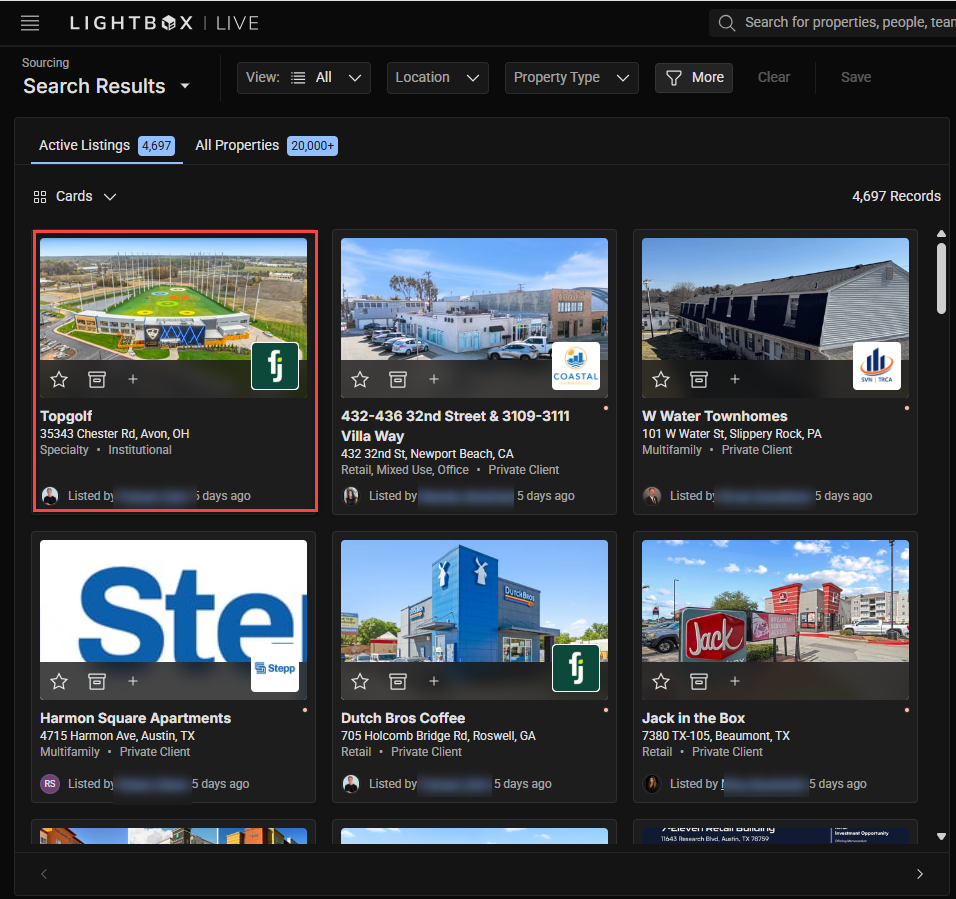
Interactive Icons on Listing Cards
.png)
Star Icon: Marks the listing as a Favorite. Favorited listings appear later in the Favorite Listings section.
Box Icon: Archives the listing to remove it from the active results panel.
Plus Icon: Adds the listing to a custom List for tracking or export.
Tip: Hover over any icon on a card to see its label or keyboard shortcut.
Managing Listings
Favoriting
Favoriting a listing allows you to quickly revisit it later from the Favorite Listings menu. Favorited listings are stored persistently across sessions.
To save a listing in Card View, click the Star Icon on the desired card.
In Table View, check the box next to one or more listings, then click the Save (Star) button above the table.
You can save up to 100 listings at one time.
To access saved listings:
.png)
Click the Search Results dropdown menu in the top-left corner of the Sourcing Panel.
Select Favorite Listings from the list.
Note: Saved listings remain available even if their status changes from active to archived, though details may no longer update dynamically.
Archiving
Archived listings are removed from active view without being permanently deleted. This helps you focus on the most relevant opportunities while retaining access to older data if needed.
To archive a listing:.png)
In Card View: Click the Box Icon on the desired listing card.
In Table View: Check the boxes beside one or more listings, then click the Archive button in the upper-right corner of the table.
You can archive up to 100 listings at one time. Archived listings are excluded from future searches and saved views unless restored manually.
Tip: Use archiving as a quick way to clear out properties that have sold or are no longer of interest without losing historical record.
Note: Archiving is only possible for active listings and not the off-market All Properties records.
Viewing Property Details
To view more detailed property information, click anywhere on a listing card (or row in Table View). The Property Details Panel will open, providing expanded information organized into tabs.
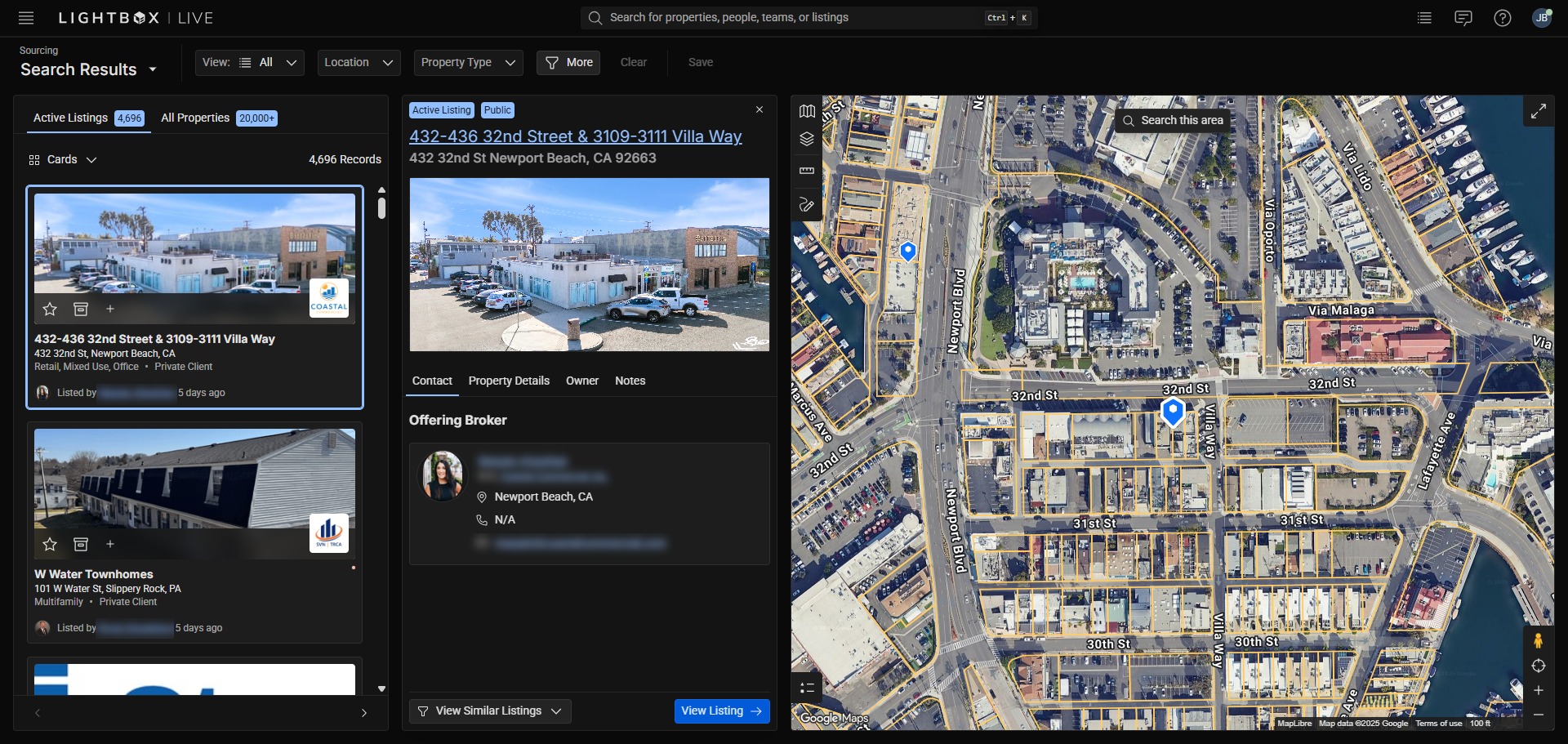
Property Details Tabs
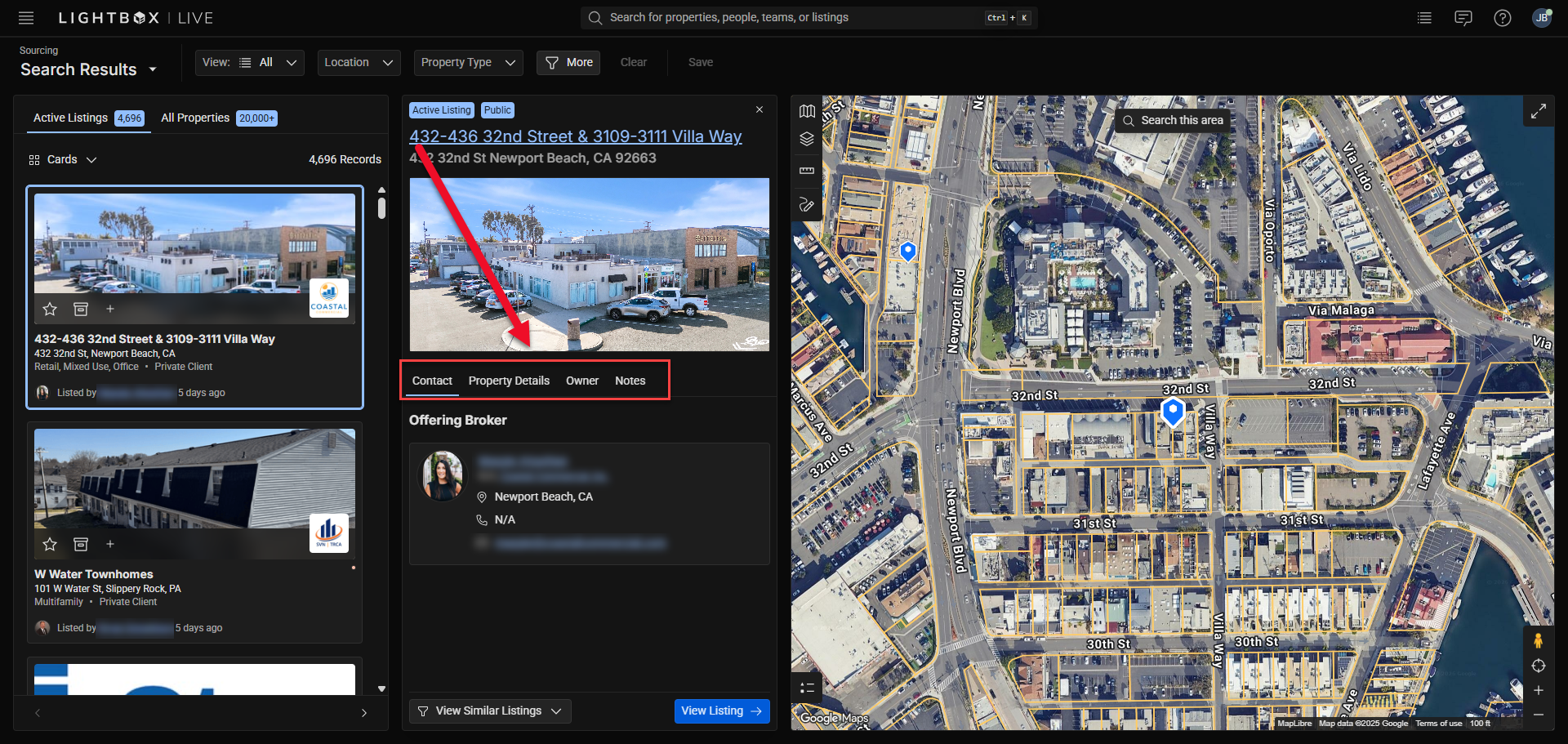
Contacts: Displays offering brokers and their info.
Property Details: Provides parcel-level data, ownership history, transaction history, and site information.
Owner: Lists the current owners according to assessor data. For some properties, it will also list owner info with contact details sourced from LightBox True Owner.
Notes: A space to record custom observations or due diligence notes.
Each listing card and detail page includes broker or agent contact details. This may include the broker’s name, company, email, and phone number.
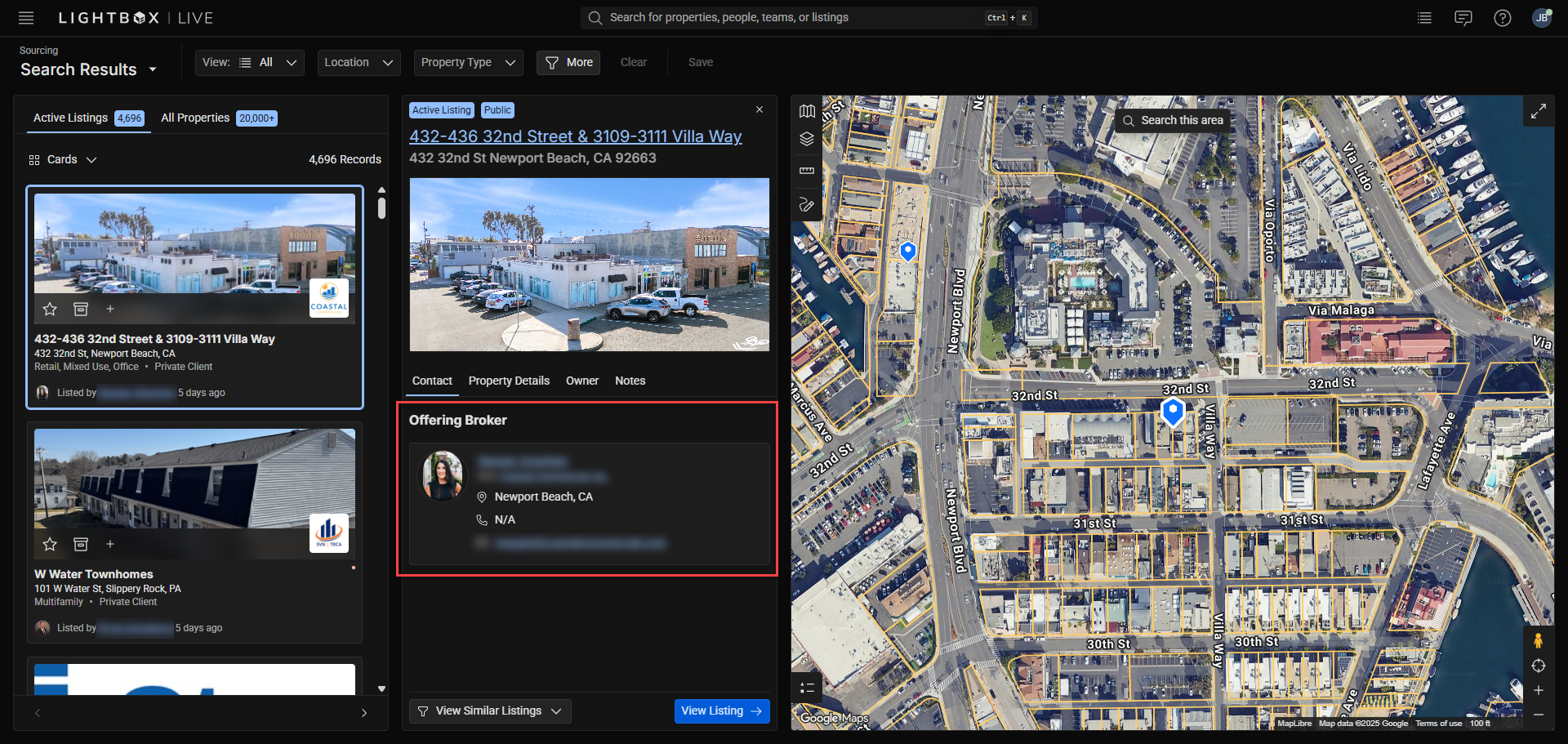
To reach out directly, click the broker’s email link to open a new email message in your default client.
To explore similar opportunities, click View Similar Listings at the bottom of the detail panel, then click Comparable Listings.
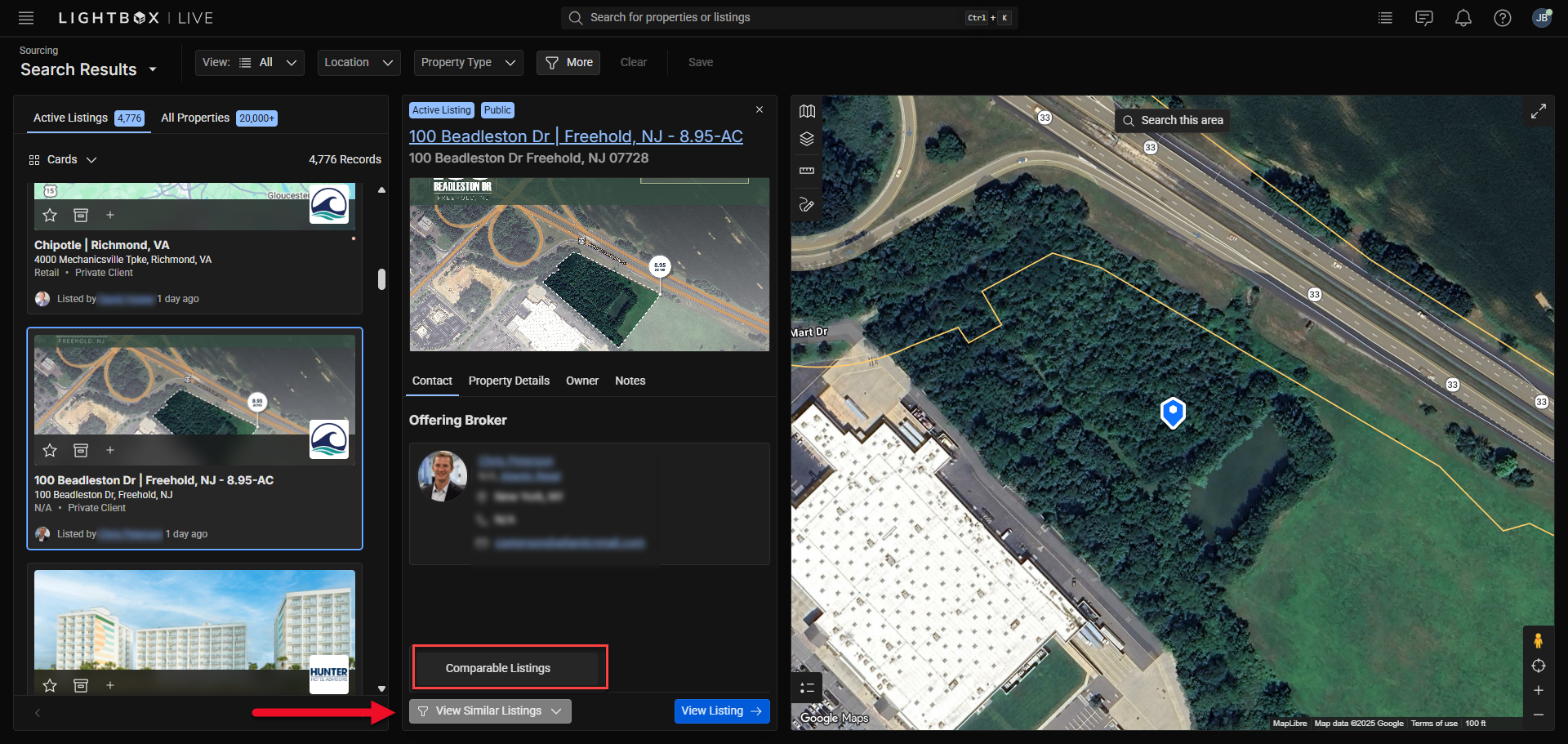
This will automatically apply filters for similar properties (comps).
Full Listing Page
The Full Listing Page provides an in-depth view of an active property, combining marketing details, financial metrics, and broker information into a single, scrollable page.
Accessing the Full Listing Page
From the Property Details Panel, click View Listing in the lower-right corner.
.png)
The listing will open in.
Use the scroll bar or mouse wheel to navigate through the property’s content sections.
The Full Listing Page opens:
.png)
Was this article helpful?
.png)