.png)

Listing Entity
- Print
- DarkLight
- PDF
Listing Entity
- Print
- DarkLight
- PDF
Article summary
Did you find this summary helpful?
Thank you for your feedback!
The Listing entity presents key details about a commercial real estate opportunity, including property information, broker contacts, marketing materials, and status updates. It supports evaluation, tracking, and engaging with potential acquisitions or sales.
Accessing the Listings entity means relocating out of the workspace summary view and into a full-sized page that consists of all the possible information and actions that can be taken with a listing.
Features on the Listings Page
Contact brokers related to that listing (or message with them if they have a LightBox Live account)
Get contact information for brokers
Sign for confidentiality agreements
View the listing image if available
Visualize this listing on the map component
Save the listing so that this can be reviewed again later
Archive the listing
Add the listing to its own list along with others
Share the listing with another team member or associate
Take personal notes or write collaborative notes with others on the same team
Accessing the Listings Entity
Select the Sourcing Workspace from the Workspace options on the top left of the page (next to the LIGHTBOX sign).
Click on one of the active listings to get the summary panel and then click the blue View Listing button at the bottom.
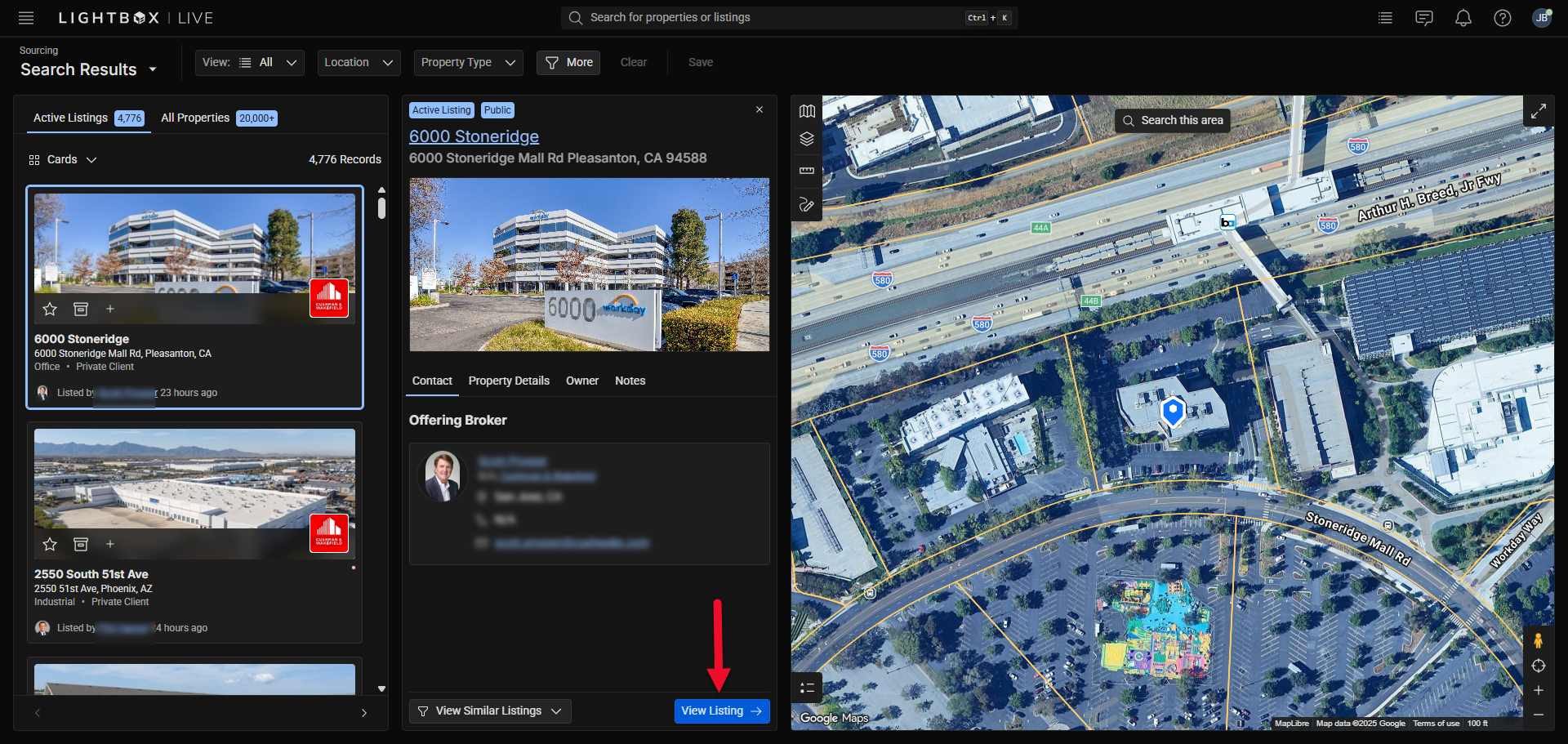
Now the complete page for the listing is present along with all the options within.
The Full Listing Page is divided into three primary sections:
Header Section: Displays the property name, location, and primary broker information.
Content Tabs: Allows switching between the Overview and Map tabs (and additional broker-provided sections such as Investment Highlights, Gallery, and Location when available).
Property Information Panel (Right Side): Summarizes broker contact details, parcel information, owner details, an option for notes, and quick actions (Save, Archive, Notes, Details).
.png)
The header section lists several buttons:

Save: Adds this listing to your Favorites.
Archive: Moves this listing out of active search results.
Notes: Opens your personal notes panel for the listing.
Details: Expands or collapses the property’s detail section on the right.
The central panel of the Full Listing entity contains rich content supplied by the broker or property owner. Common sections include:
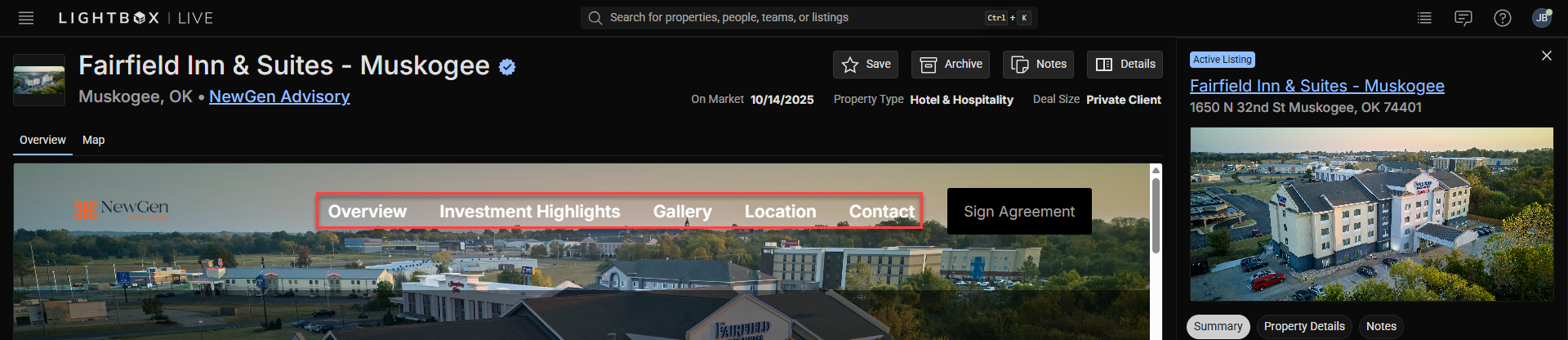
Overview: A marketing description highlighting investment rationale, location benefits, and key asset features.
Investment Highlights: Bullet points summarizing the property’s financial performance, cap rate, tenant quality, and lease structure.
Gallery: A carousel of property photos or marketing materials.
Location: A regional or site-specific map embedded directly in the listing page.
Contact: Broker-provided contact form or call-to-action (e.g., “Sign Agreement”).
Note: Available tabs and embedded media are controlled by the listing broker’s LightBox integration. Not all listings will include every tab shown in this example. Additionally, many listings require clicking the Sign Agreement button to view the full listing information.
Was this article helpful?
.png)