.png)

LightBox Login
- Print
- DarkLight
- PDF
LightBox Login
- Print
- DarkLight
- PDF
Article summary
Did you find this summary helpful?
Thank you for your feedback!
LightBox Login provides Collateral360 users with several benefits:
A simple user-based account that allows for personalization.
Ability to link your user login across multiple LightBox services.
Access to new product features coming soon!
If you have any questions, please view our FAQ page.
Account Setup
Following are step-by-step instructions for setting up your new LightBox Login user account.
Navigate to www.collateral360.com in your browser and click Sign In in the upper right corner of the page. A modal appears in the middle of the screen.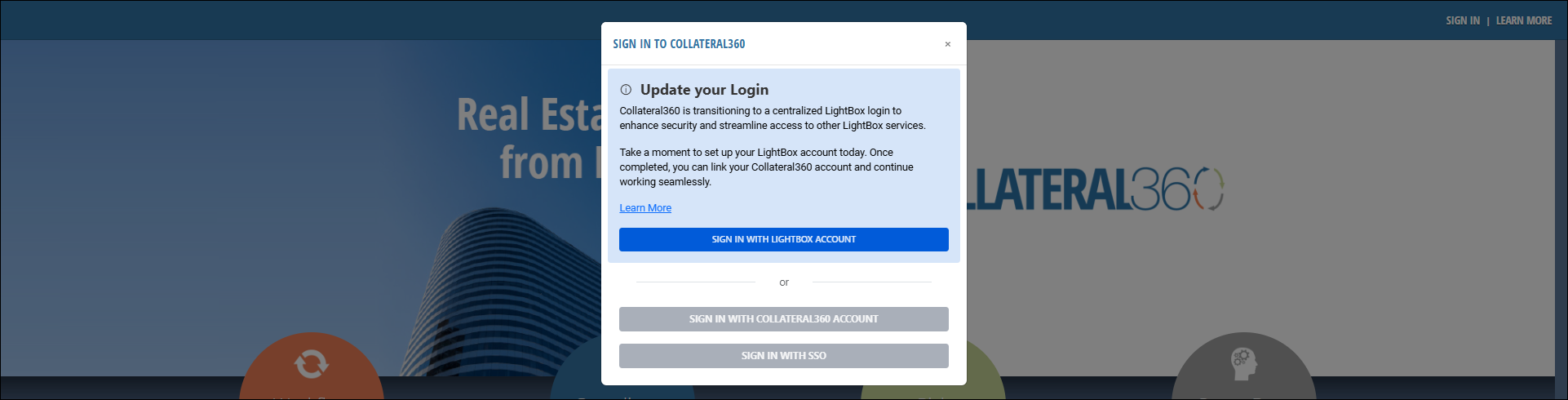
Click Sign In With LightBox Account in the modal.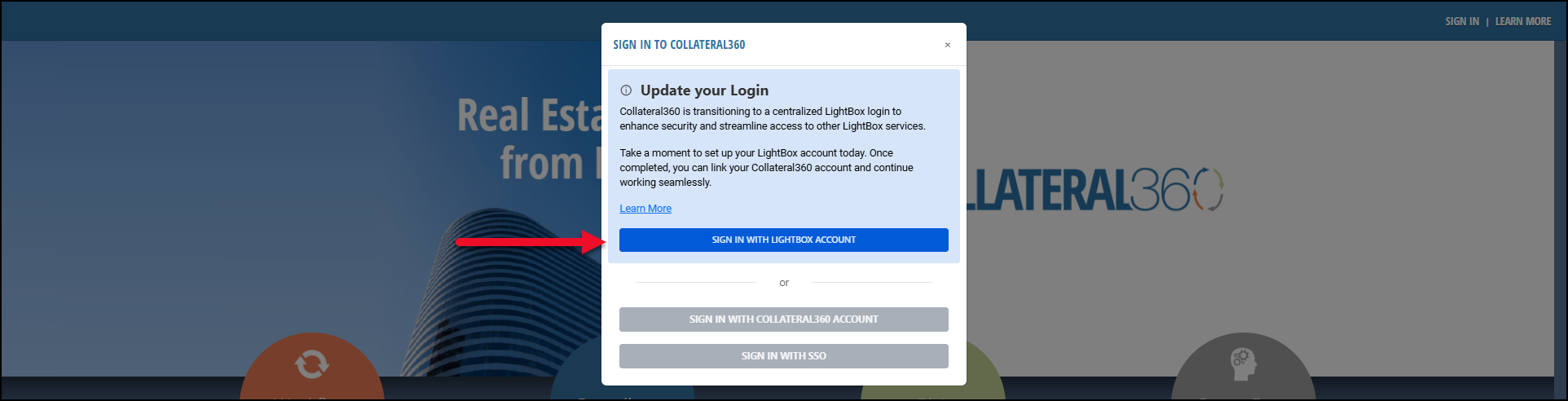
Complete these seven easy steps to create your account.
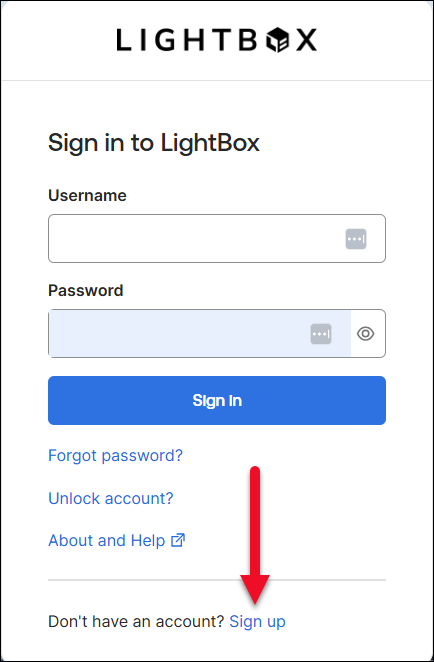
Step One To create your new user login account, click Sign Up at the bottom of the modal. |
|
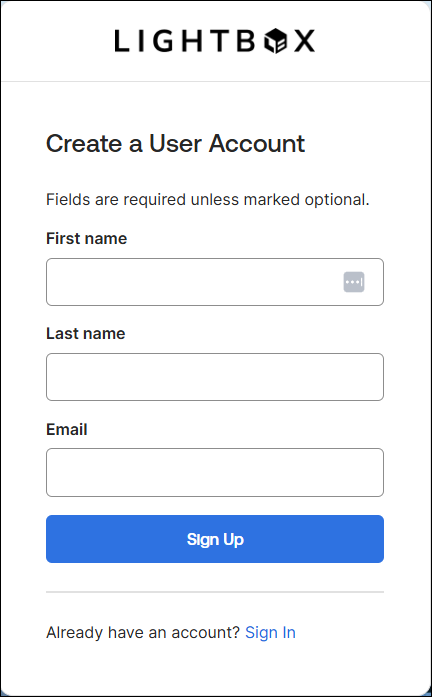
Step Two Fill out your first name, last name, and email address. Click Sign Up. |
|
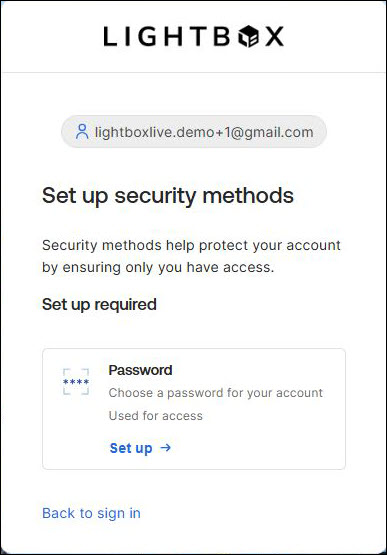
Step Three Click Set up and then create your password. |
|
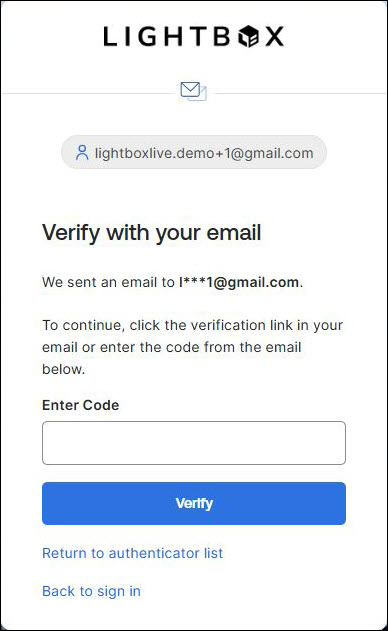
Step Four Navigate to your email inbox and locate the welcome email from LightBox. Within the email, click on the button to verify your email OR copy the verification code and paste it into the Enter Code field in the modal, then click Verify. |
|
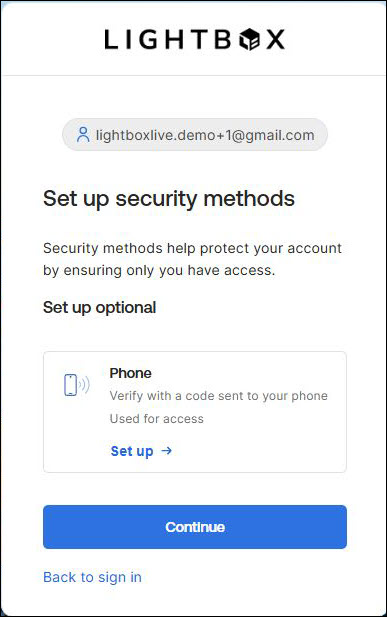
Step Five (optional) As an optional security method, you can add a phone number. If you proceed, you will receive a text with a code to verify. To skip this step, simply click Continue. |
|
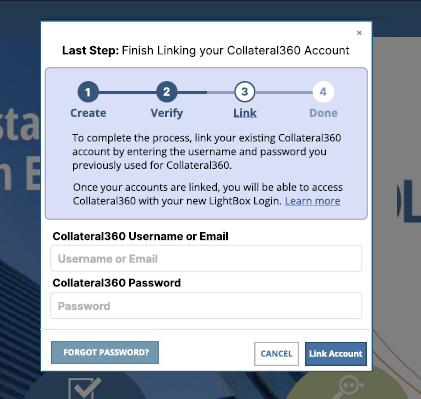
Step Six After verification, a progress bar will be displayed, along with a prompt to log in to Collateral360 and link your account. Enter your Collateral360 credentials and click Link Account. |
|
Step Seven After the linking is complete, you will be redirected to the Collateral360 dashboard. |
Was this article helpful?
.png)